
Cover outlines and shadows
Letters can have faint borders, glows or drop shadows beyond the main strokes. Include those edges so a ghost of the caption does not remain.
Select the lettering you want to erase while leaving the rest of the image intact. Upload a photo, brush over what you want gone and compare the result with your original.

 BeforeAfter
Made with People Remover · drag to compare
Choose an image or drop it here.
Both examples were edited in People Remover. Text on a plain surface is easy to remove; text over wood grain or pebbles needs a closer look afterwards.
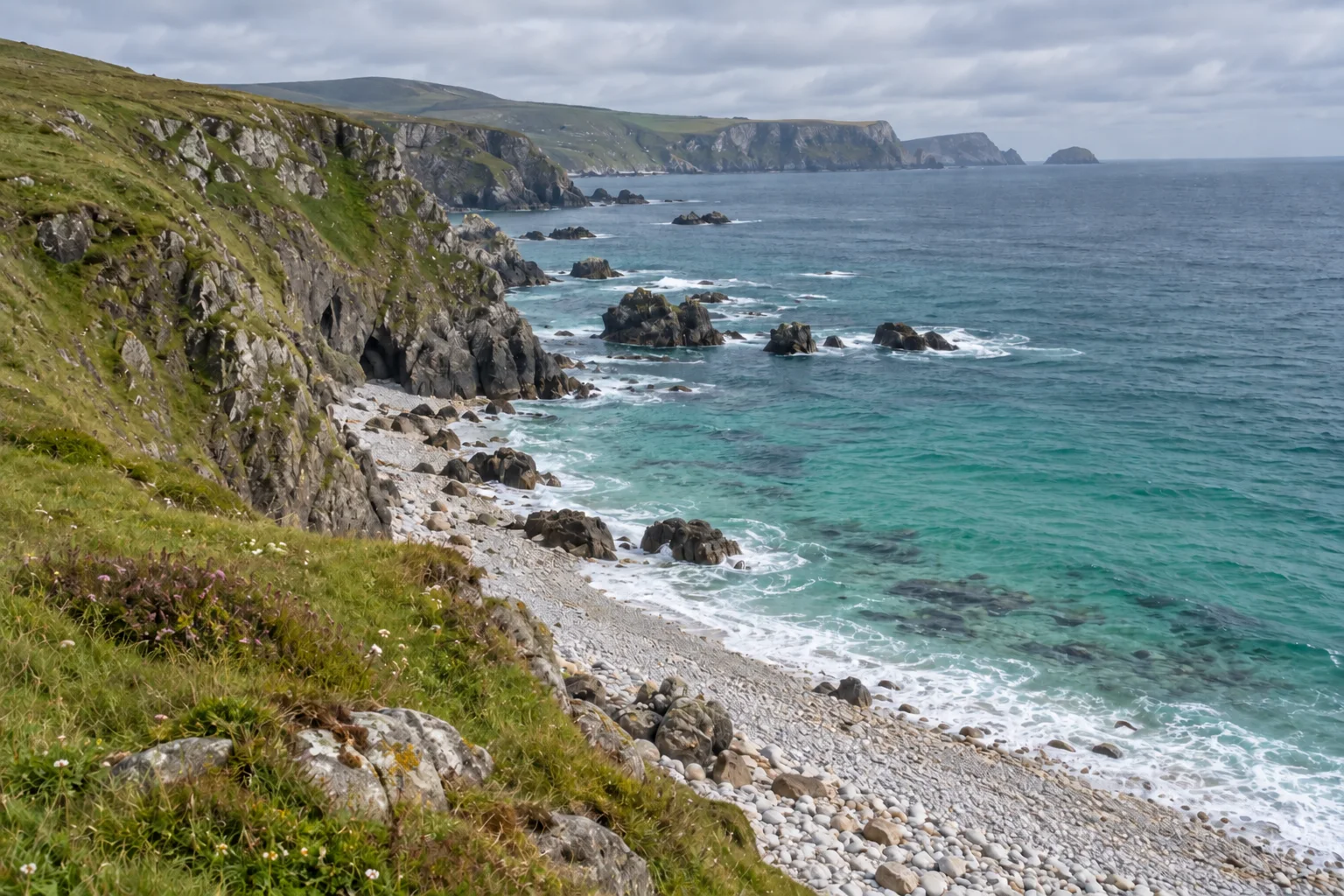
An old camera date stamp can sit right over the scenery. Zoom in and brush over every digit, including dark outlines or a colored glow around the characters.
Keep the selection close to the date so the surrounding shoreline stays visible. After removal, look for leftover orange flecks and check that the stones blend into the rest of the beach.
Remove text from your image ↗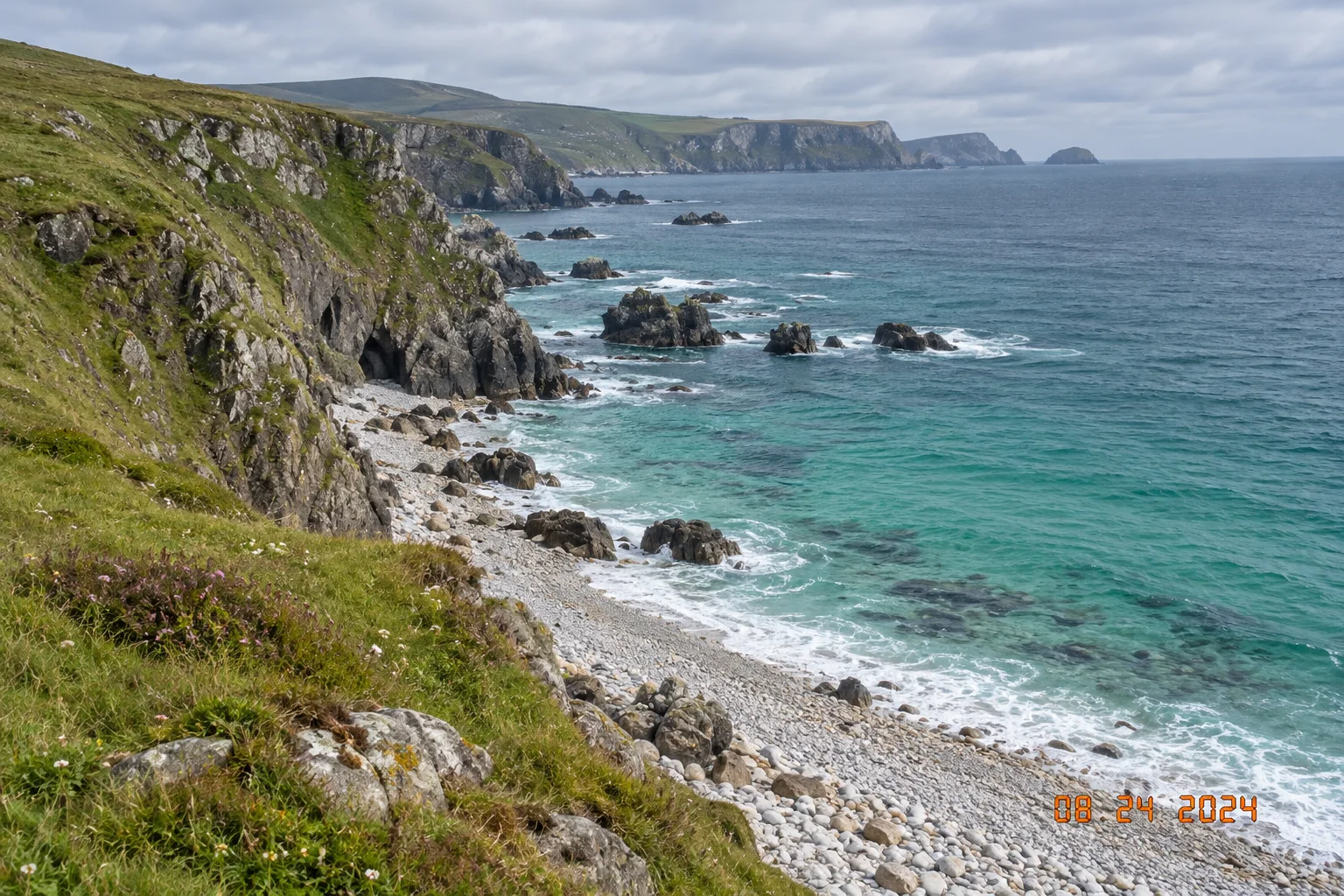
 BeforeAfter
A caption added for an old post can come off. Mark both lines of lettering while leaving the plate, cup and napkin outside the selected area.
Wood grain has a clear direction. Follow it through the former letters and check for blurred patches or repeating streaks. Large captions may need a second pass, especially when they cross several surfaces.
Remove text from your image ↗
 BeforeAfter
Made with People Remover. Results vary with the photo and how carefully the area is selected.
Letters can have faint borders, glows or drop shadows beyond the main strokes. Include those edges so a ghost of the caption does not remain.
Only select the writing you want removed. Use a smaller brush and Unmark near lettering, labels or image details you want to keep.
Check grain, paving, fabric and gradients at full size for blurred or repeating patches.
Need help with the brush? Our step-by-step guide shows how to use Mark and Unmark and how to check a result. The editor works the same way here. Need to remove a person instead? Use the people remover.
Upload a JPG, PNG or WebP image from your device.
Paint over the text you want removed. Adjust the brush size and use Unmark to clear accidental marks.
Compare the result with your original, then download it at full resolution. That includes edits made with free credits.
The removed area is filled in from what surrounds it. It’s a convincing guess, not the real scene that was hidden. Repeating patterns, overlapping people and very large selections are the hardest cases and may need a second pass. Zoom in and check the result before you print or share it.
No, only the text you brush over. Leave any words you want to keep unmarked and they stay exactly as they are.
Yes, though busy patterns such as wood grain or pebbles may take more than one try.
You can brush over a date stamp just like a caption. Include every digit and any border or glow, then check the filled area for leftover colored pixels.
The selection may have missed a thin outline or drop shadow. Zoom in, adjust the original selection to include those edges and try again.
JPG, PNG or WebP, up to 20 MB and 25 megapixels. If a very large photo won’t open on your phone, try a computer or a smaller version of the photo.
Yes. Every result downloads at the same width and height as your original, including edits made with free credits. Only the area you brushed changes. Files are saved as PNG, and camera metadata such as EXIF is not kept.
Standard generates the brushed area at 1K. HD Repair generates it at 2K, which gives the filled area twice the detail in each direction. You’ll notice it most on large photos when you zoom in or print. Both download at full resolution. Standard uses 2 credits. HD Repair uses 5 credits and unlocks after your first purchase. On photos under about 1,000 pixels on the long side, Standard already matches the photo’s resolution.